Register & create your organisation
1. Sign up
- Open the portal and go to Register.
- Enter your email and click Send code. You'll get a 6-digit code by email (you can resend it after 60 seconds).
- Enter the code, pick a display name and password, and submit.
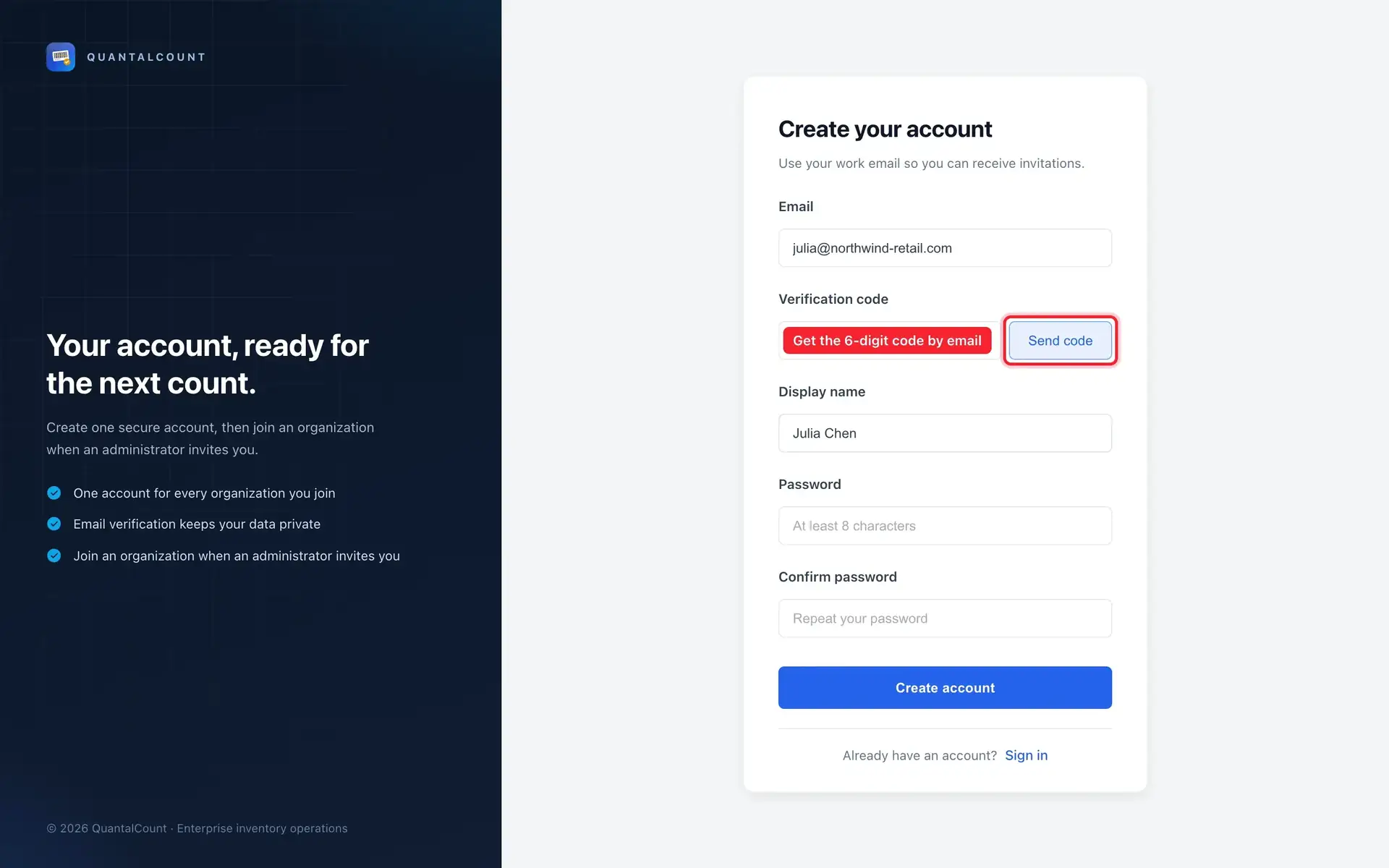
Signing up only creates your personal account. You're not part of any organisation yet.
2. Create your organisation
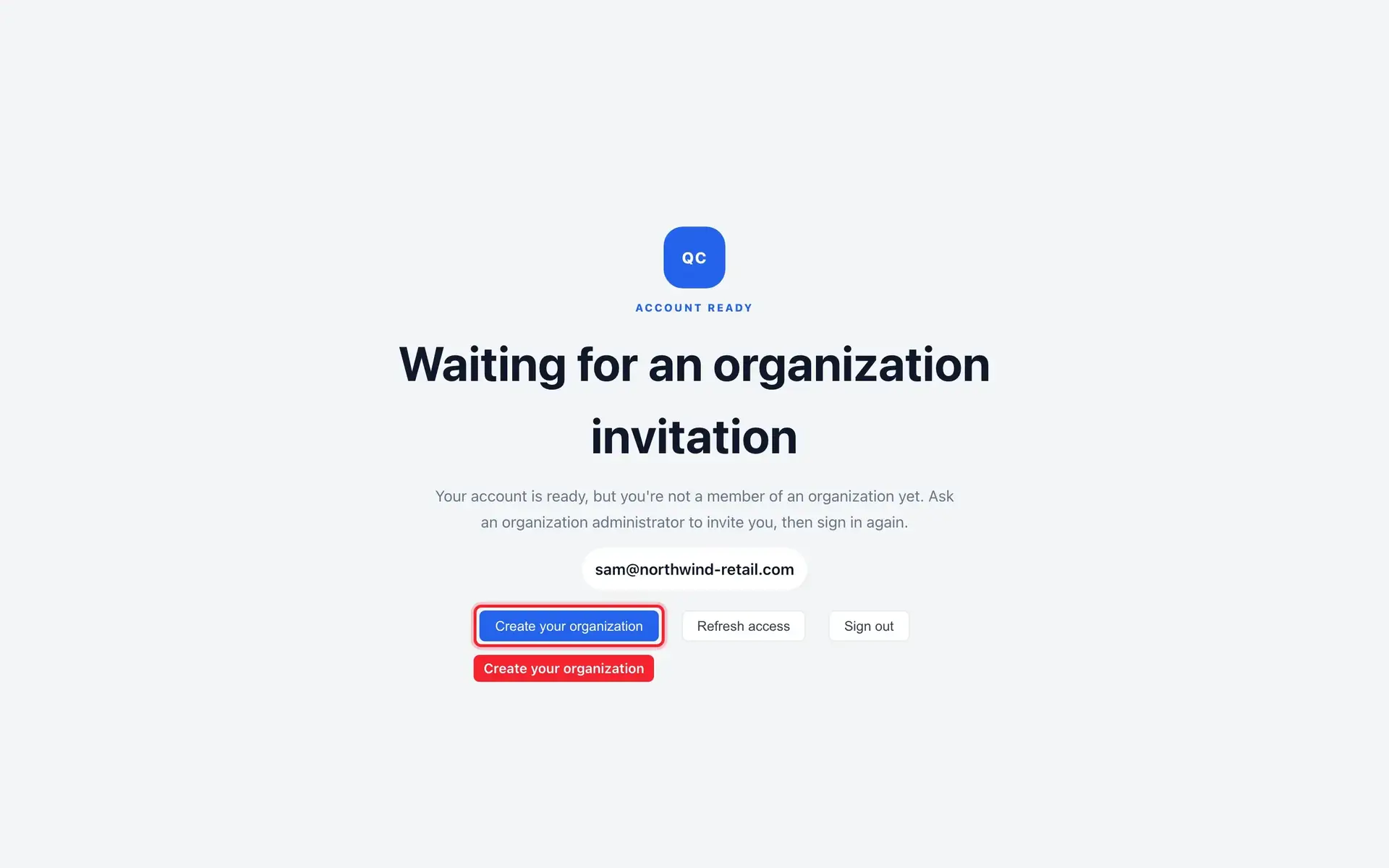
After signing in you'll see an "access pending" page. Choose Create your organisation there:
- Organisation ID — a short uppercase code (up to 10 characters), checked for availability as you type. You can't change it later.
- Organisation name — the display name. You can change this under Administrate → Profile.
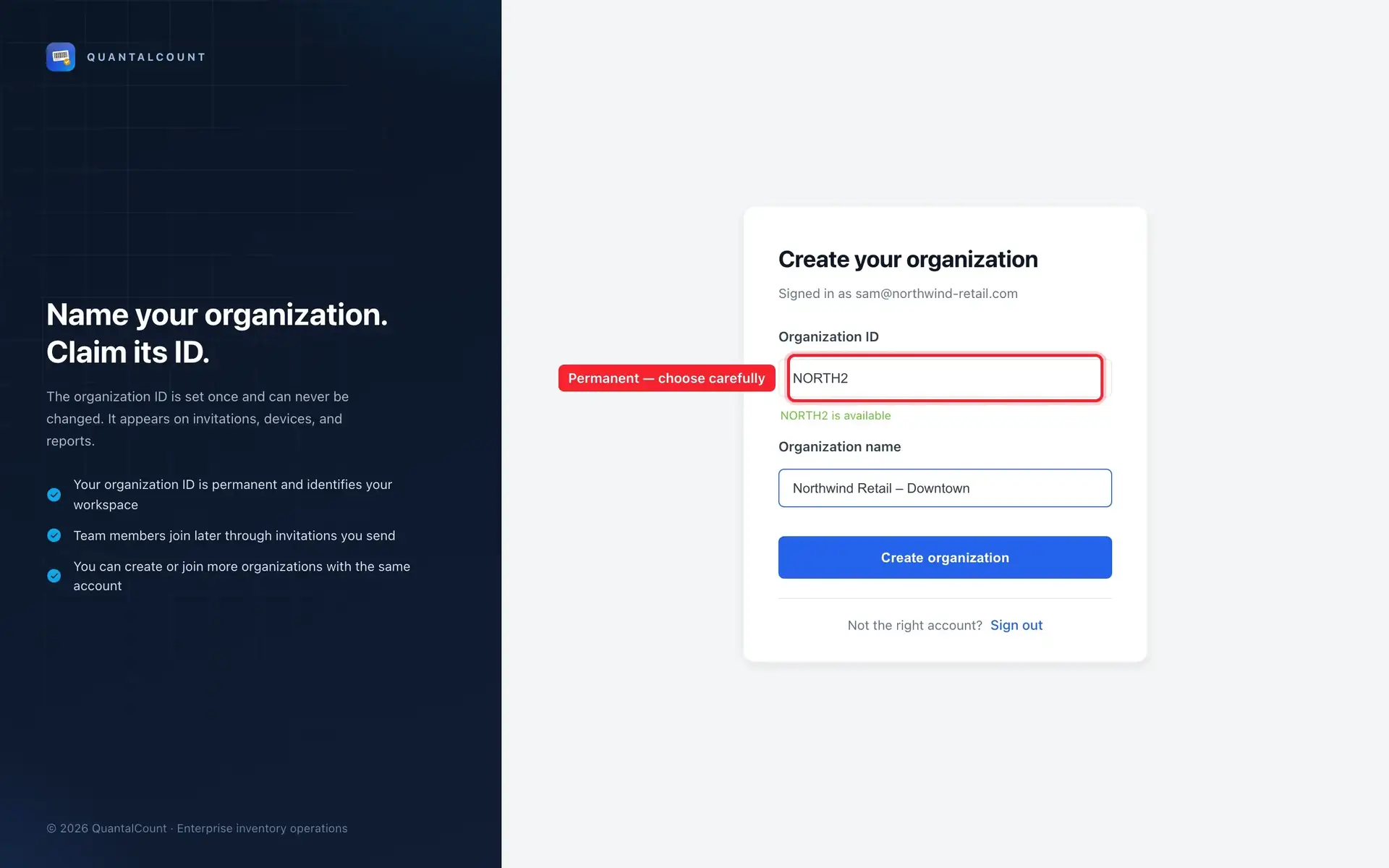
Pick the ID carefully
The Organisation ID shows up in URLs and identifies your data. It's permanent.
3. Pick a plan
Right after creating the organisation you'll be asked to choose a plan (Starter, Business, or Enterprise) and buy your first Inventory licences. Until that's done, the portal only shows the subscription pages.
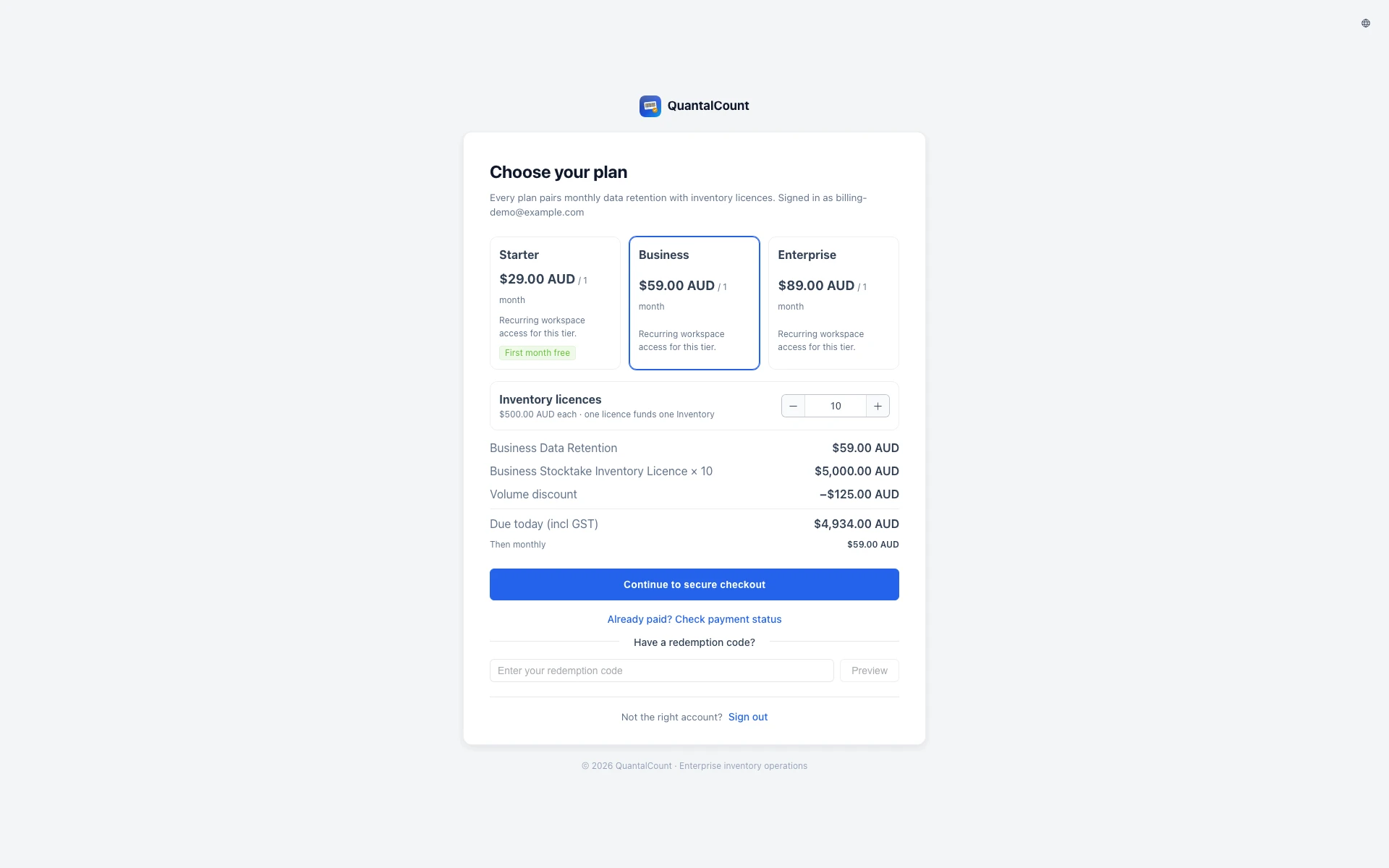
If this is your organisation's first subscription and you pick Starter, the first monthly subscription payment is $0. Inventory licences are still purchased separately.
Joining an existing organisation?
Don't create a new one. Ask your admin to invite you or import your registered account under Administrate → People, then follow the invitation steps if required.