Supervisor
Supervisors run counting Inventories on site, using both the portal and the mobile app. You only see Inventories assigned to you.
Before the count
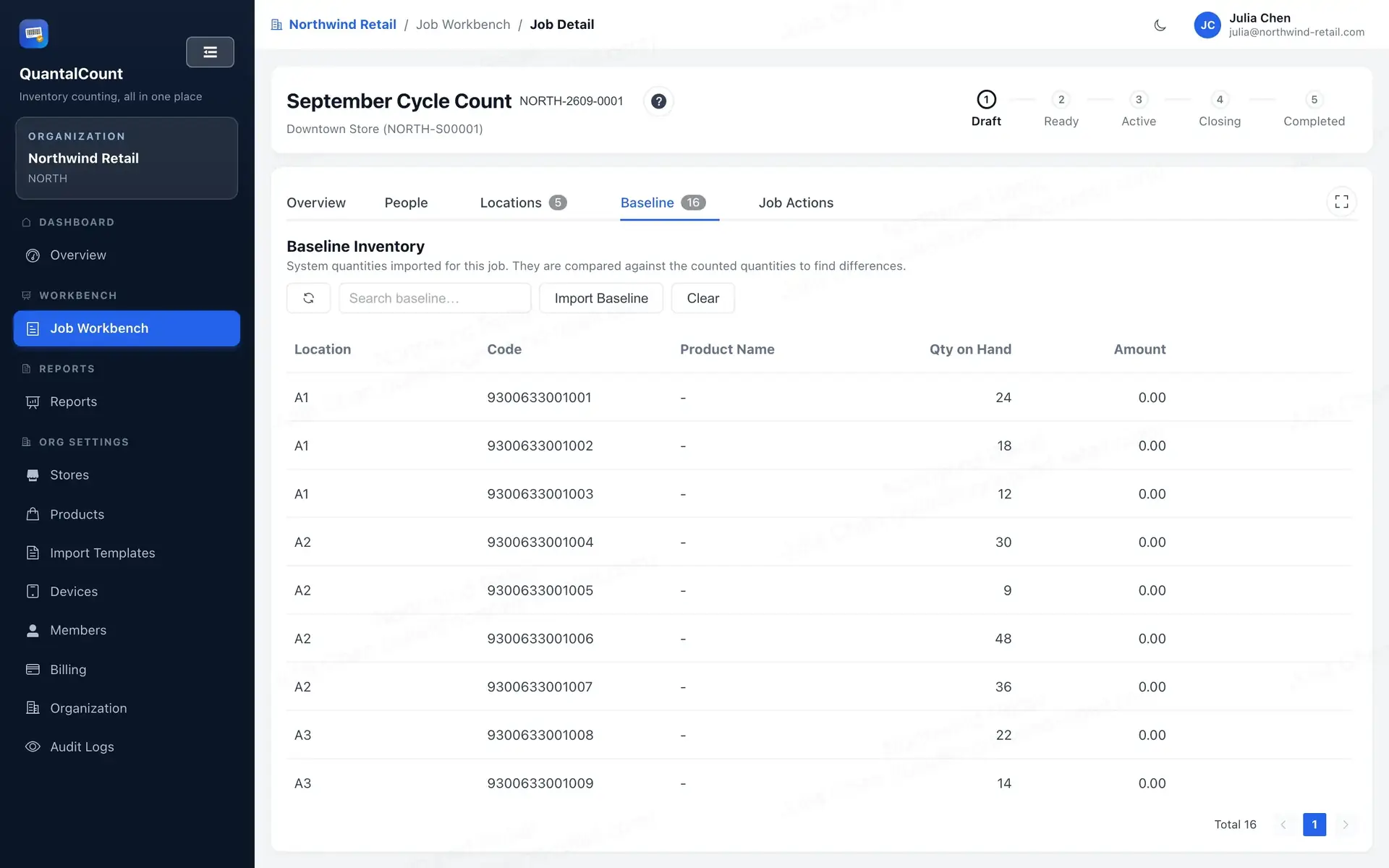
- Upload the baseline file in the Inventory's Baseline panel before closeout. Preview first, then apply — applying replaces the whole baseline. See Baseline import.
- Check with your admin that the Inventory is Approved (that's when the licence gets used).
Starting the count
- Activate the Inventory. No extra licence is used. From this point you have a 72-hour window to collect scans.
- Get counters in: click Counter QR code in the Inventory header, or show the Counter Access QR from your phone. Counters scan it in their app and they're in.
- Counter access has no timed expiry by default. Counting and uploading still require an Active Inventory and an open collection window.
- Regenerating or revoking the QR code doesn't remove people who already joined.
- Only an organisation admin can revoke someone's existing access under People + Devices → People. Supervisors can revoke QR invitations under Invitations.
During the count
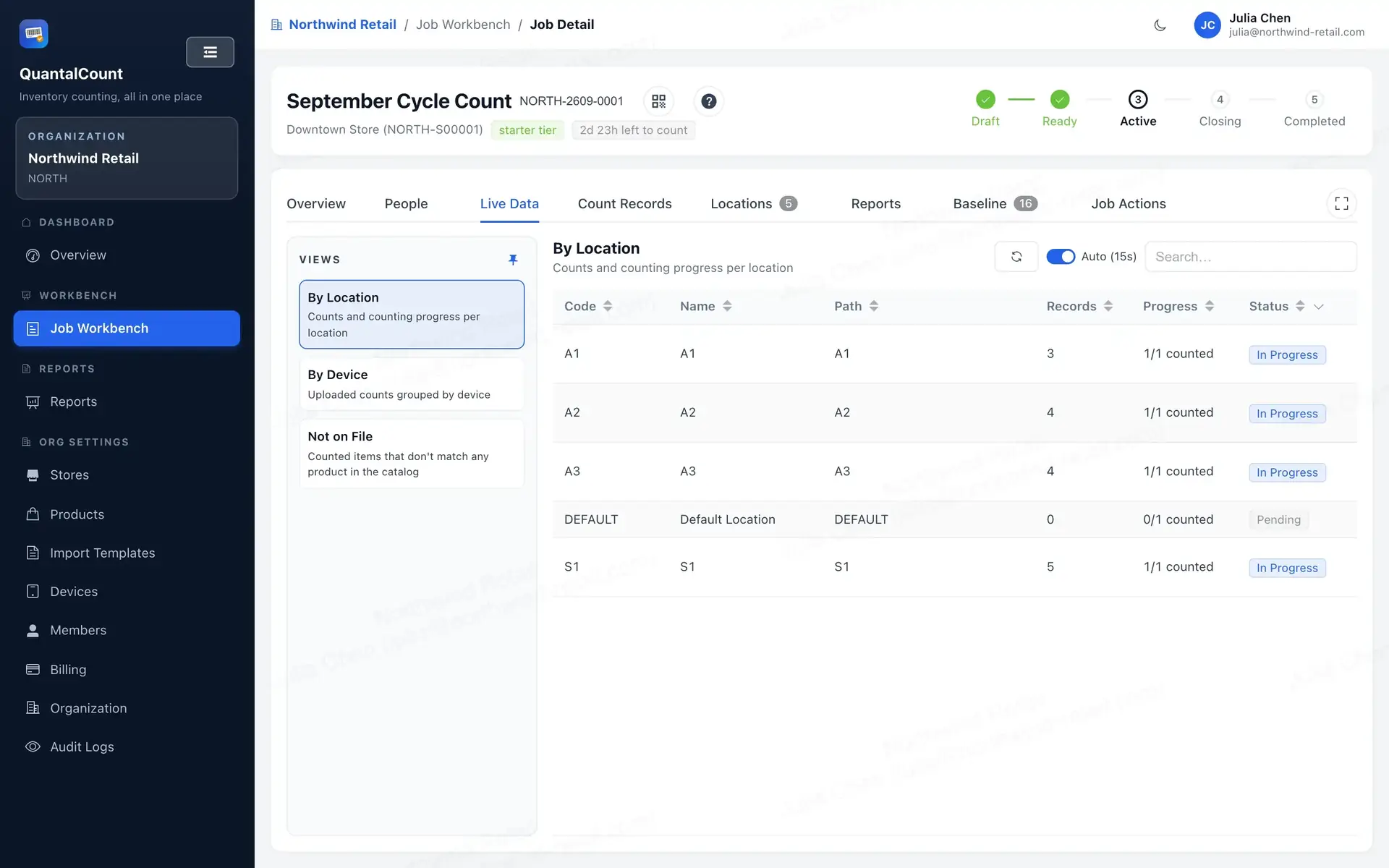
- Watch progress in Count Summary, and inspect record-level data in Count Details.
- Fix records in the portal when needed — quantity, price, remark, location are all editable. The scanned code itself can't be edited: if someone scanned the wrong thing, delete the record and scan it again. Record writes are allowed in Active or Closing only while the original write window remains open.
Closing
- When the floor is done, click Go to Closeout. Phones stop uploading (unsent scans stay safe on the devices).
- Resolve duplicates and completion-blocking validation issues. Not-on-file (NOF) records can remain included in counted quantities and do not block completion.
- Generate the Inventory Summary (Final) — the Inventory can't complete without it.
- Complete the Inventory. The product list is archived at that moment, so reports stay accurate.
Need to count a bit more? Reopen sends the Inventory back to Active, but it doesn't restart or extend the original 72-hour write window. Devices can upload again only while that window and subscription access remain valid.
Cancelling
Only an organisation admin can cancel an Inventory. Scheduled, Approved or Active Inventories can be cancelled only while no counting data or counting history exists; cancelling an eligible Approved or Active Inventory returns its consumed licence.